Learning how to save phone from hacking starts with understanding one truth: your smartphone is now the single most valuable target for cybercriminals. It holds your bank logins, private messages, health records, work email, personal photos, and location history all in one pocket sized device.
The scale of the problem is staggering. A 2025 report by Certo Software, compiled from data by Norton, Zimperium, and Lookout, found that 6.3% of smartphones worldwide had a malicious app installed in 2024. The same report confirmed that 70% of all online fraud now happens through mobile platforms, and 83% of phishing websites specifically target mobile users.
But here is the reassuring part: the overwhelming majority of phone hacking attacks succeed because of preventable human mistakes, not because of unstoppable technology. A few deliberate changes to how you use your phone can block most threats before they reach your data.
This guide covers 12 proven, actionable methods to secure your phone from hackers. Every tip applies to both iPhone and Android users, and most of them cost nothing to implement.
Table of Contents
Why Is Phone Hacking a Growing Threat?
Phone hacking is increasing because smartphones have replaced computers as the primary gateway to personal and financial data. A single compromised phone can give an attacker access to banking apps, email accounts, social media, corporate systems, and even two factor authentication codes.
The Zimperium 2025 Global Mobile Threat Report uncovered more than 5 million unsecured public Wi Fi networks globally since the start of 2025, with 33% of users routinely connecting to these exposed hotspots. The same report found that nearly one third of all mobile threats are now phishing based, including SMS phishing and PDF based attacks disguised as legitimate notifications.
Meanwhile, roughly 24,000 malicious mobile apps are blocked every single day worldwide, according to data cited in Certo Software’s mobile security statistics. Attackers constantly push infected apps onto official and unofficial app stores, banking on users who install without checking.
Here is a breakdown of the most common phone hacking methods and how each one works:
| Hacking Method | How It Works |
| Phishing (SMS and Email) | Fake messages trick you into clicking malicious links or entering credentials |
| Malicious Apps | Infected apps steal data, record activity, or install spyware once downloaded |
| Public Wi Fi Attacks | Hackers intercept unencrypted data on open networks |
| SIM Swapping | Criminals trick your mobile provider into moving your phone number onto a SIM card they control. |
| Spyware and Stalkerware | Hidden software silently monitors calls, messages, and location |
| Credential Stuffing | Reused passwords from old data breaches are tested on your current accounts |
1. Keep Your Phone Software and Apps Up to Date at All Times
Keeping your phone’s software current is the fastest and easiest way to protect your phone from being hacked. Every update from Apple or Google contains security patches that seal vulnerabilities attackers actively hunt for.
Yet a surprising number of devices remain unpatched. Certo Software’s 2025 analysis found that 31.1% of mobile devices were running outdated operating systems in Q3 2024. Even more concerning, 44% of iPhones did not have automatic updates enabled, and 17.23% of Android devices were running an OS version that no longer received any security patches at all.
The U.S. Cybersecurity and Infrastructure Security Agency (CISA) lists enabling automatic updates as a top recommendation in its official Mobile Device Cybersecurity Checklist for Consumers.
What you should do:
- Enable automatic updates for both your operating system and all installed apps immediately.
- Manually check for pending updates at least once a week.
- Delete apps that have not received a developer update in over 12 months, as abandoned apps often carry unpatched security holes.
2. Create Strong Passwords and Store Them Safely in a Password Manager
Weak and recycled passwords remain the single most exploited vulnerability in phone security. Data compiled by ElectroIQ’s 2025 hacking statistics report shows that approximately 43% of compromised social media accounts trace back to passwords reused from older data breaches.
A secure password should contain at least 12 characters mixing uppercase letters, lowercase letters, numbers, and symbols. No two accounts should ever share the same password.
Since memorizing dozens of complex passwords is impractical, a dedicated password manager solves the problem. CISA’s updated Mobile Communications Best Practice Guidance specifically recommends using a password manager, listing Apple Passwords, Google Password Manager, 1Password, Dashlane, Keeper, and Proton Pass as options that can alert you to weak, reused, or leaked credentials.
Password safety checklist:
- Never reuse the same password across any two apps or websites.
- Avoid passwords built from personal details like birthdays, pet names, or phone numbers.
- Install a reputable password manager and let it generate random credentials for every account.
- Change any compromised password immediately when you receive a breach notification.
3. Add Two Factor Authentication to Every Account You Use
Two factor authentication adds a second verification step beyond your password, making it far more difficult for attackers to break into your accounts even if they steal your login credentials.
With 2FA active, signing in requires both your password and a temporary code generated by an app, sent via text, or confirmed through a biometric scan. Without the second verification step, a stolen password on its own gets the hacker nowhere.
However, not all 2FA methods offer equal protection. ElectroIQ’s research indicates that attackers bypass multi factor authentication in roughly 14% of cases using social engineering and sophisticated phishing techniques. Choosing the strongest available method makes a significant difference.
2FA methods ranked from strongest to weakest:
- Hardware security keys (YubiKey, Google Titan) provide the highest level of phishing resistant protection. CISA’s guidance names FIDO based hardware keys as the gold standard.
- Authenticator apps (Google Authenticator, Authy, Microsoft Authenticator) generate time based codes that work offline and are not vulnerable to SIM swapping.
- SMS based codes offer some protection but remain vulnerable to interception through SIM swap attacks and should be replaced with an authenticator app whenever possible.
Prioritize setting up 2FA on your email account first. Email access is the master key for resetting passwords on virtually every other service you use.
4. Avoid Public Wi Fi or Use a VPN When Connected
Open Wi Fi networks at cafes, airports, hotels, and public venues are among the easiest entry points for phone hackers. These networks typically lack encryption, which means any data you send or receive can be intercepted by an attacker on the same connection.
Zimperium’s 2025 Global Mobile Threat Report found that devices connecting to unsecured networks increased by 45% in 2024 and connections to rogue access points doubled during the same period. A Forbes study cited by Cloudwards found that 43% of unsecured network users have experienced some form of data compromise.
Attackers exploit these networks primarily through man in the middle attacks, where they position themselves between your device and the router to silently capture passwords, banking credentials, and private messages.
How to stay safe on public networks:
- Use your mobile data connection or personal hotspot instead of free Wi Fi whenever you can.
- If you must connect to public Wi Fi, activate a reputable VPN such as NordVPN, ExpressVPN, or ProtonVPN to encrypt your traffic.
- Disable the auto connect feature in your phone’s Wi Fi settings so it does not join open networks without your awareness.
- Never access banking apps, enter passwords, or make purchases on a public Wi Fi connection.
Important note from CISA: The agency’s November 2025 guidance update advises highly targeted individuals to avoid personal VPNs (especially free ones) because they simply shift trust from your internet service provider to the VPN provider, potentially increasing risk. For everyday users, however, a trusted paid VPN still offers meaningful protection on public networks.
5. Protect Yourself From SIM Swapping Attacks
SIM swapping is one of the fastest growing forms of phone related fraud worldwide. In this attack, a criminal convinces your mobile carrier to transfer your phone number to a SIM card they control. Once successful, they receive all your incoming calls and text messages, including any SMS based two factor authentication codes.
The financial damage is severe. The FBI’s 2024 Internet Crime Complaint Center (IC3) report documented 982 SIM swapping complaints totaling nearly $26 million in losses for that year alone. Internationally, the UK’s fraud prevention service Cifas reported a staggering 1,055% surge in unauthorized SIM swaps, jumping from 289 cases in 2023 to almost 3,000 in 2024.
How to prevent SIM swapping:
- Call your mobile carrier and request a SIM lock, port freeze, or account PIN that must be provided before any SIM changes can be processed.
- Switch all accounts from SMS based two factor authentication to authenticator apps or hardware keys, removing the value of intercepting your text messages.
- Limit the personal information you share publicly on social media, since attackers use these details to impersonate you when calling your carrier.
- Monitor your phone for sudden loss of cellular service. If your phone unexpectedly shows “No Service” or “SOS Only,” contact your carrier immediately from another device.
CISA’s Mobile Communications Best Practice Guidance explicitly recommends setting a telco PIN on your mobile account to reduce SIM swapping risk.
6. Only Download Apps From Trusted Sources
Installing apps from outside the official Apple App Store or Google Play Store dramatically increases your chances of downloading malware. Certo Software’s data shows that sideloaded apps carry a 200% higher probability of containing malicious code compared to apps from curated stores.
Even within official stores, not every app is safe. More than 300,000 Android users have downloaded banking trojans directly from the Google Play Store, according to the same report. Attackers disguise malware as legitimate tools like PDF readers, flashlight apps, or file managers.
Safe app downloading practices:
- Only install apps from the Apple App Store or Google Play Store. Avoid third party app stores and direct APK downloads.
- Check the developer’s name, download count, and user reviews before installing any app.
- Be skeptical of apps that have been recently published with very few reviews but promise premium features for free.
- Use Google Play Protect (Android) or Apple’s built in app review protections (iOS) to scan for known threats.
CISA’s consumer checklist advises users to disable third party app stores entirely and to periodically delete unneeded apps from their devices.
7. Review and Limit App Permissions on Your Phone
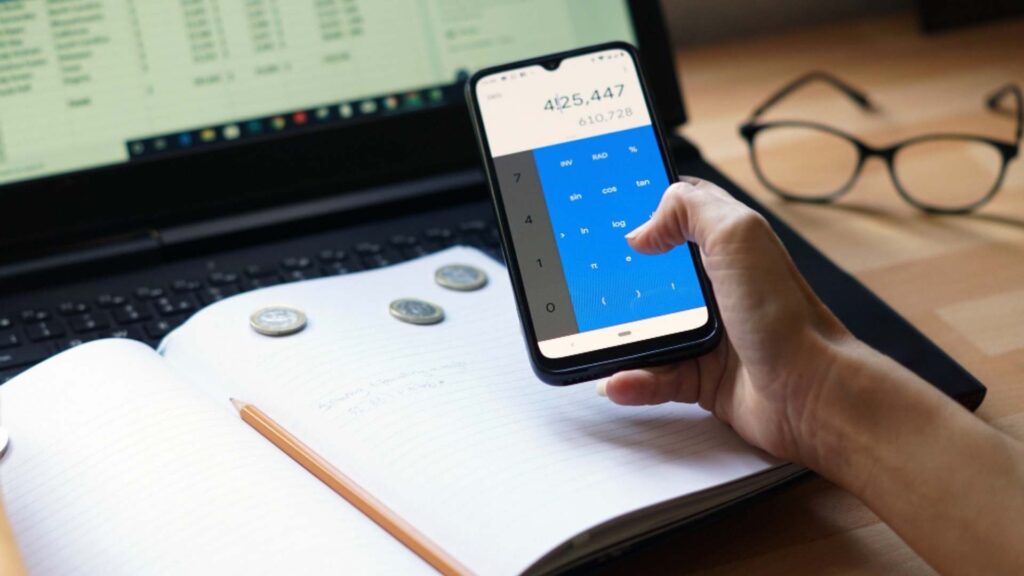
Many apps request access to your camera, microphone, contacts, location, and storage far beyond what they need to function. A calculator app asking for microphone access, or a weather app requesting your contact list, are clear warning signs. These excessive permissions can be silently exploited to harvest personal data.
Certo Software reports that one in 36 mobile devices globally has a high risk app installed. CISA’s guidance for iPhone users specifically recommends reviewing and tightening app permissions as a core security practice.
Steps to audit your app permissions:
- iPhone: Go to Settings, then Privacy and Security. Review each category (Location, Camera, Microphone, Contacts) and revoke unnecessary access.
- Android: Go to Settings, then Apps, then Permissions. Review which apps hold sensitive permissions and remove any that are not essential.
- For location access, choose “Allow Only While Using the App” instead of “Always Allow.”
- Delete apps you no longer use. Even dormant apps can collect and transmit data in the background.
- Make permission auditing a monthly habit.
8. How to Recognize and Avoid Phishing Attacks on Your Phone
Phishing is the most common attack method used to hack phones. These scams arrive as fake text messages, emails, social media links, or even QR codes designed to steal your login credentials or install malware on your device.
Zimperium’s 2025 research confirms that nearly one third of all mobile threats come from phishing, with a significant share delivered through SMS based phishing (known as smishing) and PDF attachments disguised as delivery notices or travel alerts. The Anti Phishing Working Group (APWG) reported over 1 million phishing incidents in Q1 2025 alone.
Red flags that signal a phishing attempt:
- Messages that manufacture urgency: “Your account will be suspended in 24 hours.”
- Links with misspelled domain names, unusual characters, or shortened URLs.
- Requests for passwords, OTPs, banking details, or other personal information.
- Unexpected attachments from unknown senders.
- Offers that seem unrealistically generous.
- QR codes from unverified sources. CISA’s November 2025 guidance specifically warns against scanning QR codes or clicking group invitation links from unknown senders.
What to do instead: If you receive a suspicious message claiming to be from your bank, a delivery service, or any company, never tap the link. Open the official app directly or type the company’s website address manually into your browser.
9. Enable Device Encryption for Maximum Data Protection
Device encryption scrambles all the data stored on your phone so that it cannot be read without your passcode, fingerprint, or face scan. If your phone is lost, stolen, or physically accessed by an attacker, encrypted data remains unreadable.
Modern iPhones running iOS 8 or later have encryption enabled by default as long as a passcode is set. You can verify this by navigating to Settings > Face ID and Passcode (or Touch ID and Passcode) and checking that “Data protection is enabled” appears at the bottom of the screen.
On Android, most devices running Android 6.0 or newer support full disk or file based encryption. Check by going to Settings > Security > Encryption and Credentials. If your device is not already encrypted, follow the on screen steps to enable it.
Additional encryption tips:
- Use a strong numeric passcode (six digits or longer) or an alphanumeric password instead of a simple four digit PIN or pattern lock.
- Enable biometric authentication (fingerprint or face recognition) for convenience without sacrificing security.
- Set your phone to auto lock after one to five minutes of inactivity. CISA recommends keeping the auto lock timeout as short as practical.
10. Set Up Remote Wipe and Find My Phone Features
If your phone is lost or stolen, having remote wipe enabled allows you to erase all data from the device before a thief can access your personal information. Both Apple and Google offer free built in tools for this purpose.
How to enable remote wipe:
- iPhone users: Open Settings > Your Name > Find My > Find My iPhone. Enable Find My iPhone and Send Last Location.
- Android users: Open Settings > Security > Find My Device. Ensure it is turned on and that location services are active.
Once activated, you can visit iCloud.com/find (Apple) or google.com/android/find (Google) from any browser to locate your phone, play a sound, lock the screen remotely, or erase all data if recovery appears unlikely.
This setup takes less than two minutes and can save you from a devastating data breach if your device falls into the wrong hands.
11. Use End to End Encrypted Messaging Apps
Standard SMS text messages are not encrypted and can be intercepted, particularly through SIM swapping or compromised telecom infrastructure. Switching to an end to end encrypted messaging app ensures that only you and your intended recipient can read your conversations.
CISA’s November 2025 Mobile Communications Best Practice Guidance strongly recommends using end to end encrypted messaging applications like Signal for all sensitive communications. This recommendation applies to both iPhone and Android users.
For Android users, enabling RCS (Rich Communication Services) in Google Messages also provides end to end encryption for one on one conversations when both parties have RCS enabled.
12. How to Know If Your Phone Is Hacked: Warning Signs and Recovery Steps
Recognizing the symptoms of a compromised phone is just as critical as prevention. If multiple warning signs appear simultaneously, your device may already be under an attacker’s control.
Common signs your phone has been hacked:
| Warning Sign | What It Could Indicate |
| Battery drains much faster than normal | Spyware or malware running silently in the background |
| Phone overheats while idle | Malicious processes consuming system resources |
| Apps appear that you did not install | Malware disguised as system tools |
| Sudden spikes in mobile data usage | Data being transmitted to a remote server |
| Random pop ups, redirects, or new browser tabs | Adware or browser hijacker infection |
| Contacts report messages you did not send | Your account or device has been compromised |
| Unusual charges on your phone bill | Premium rate SMS or call fraud from malware |
Immediate recovery steps if your phone is hacked:
- Disconnect your phone from Wi Fi and mobile data to stop any ongoing data transfer.
- From a separate trusted device, change passwords for your email, banking, and social media accounts.
- Run a full security scan using a trusted app such as Malwarebytes or Bitdefender Mobile Security.
- Remove any unfamiliar apps or apps you did not install yourself.
- Update your operating system and all apps to the latest version.
- If the problem persists, perform a factory reset. This erases all data and returns your phone to its original state, eliminating most malware. Back up essential files first.
- After the reset, restore only from a clean backup. Do not reinstall apps from an unknown source.
- Contact your mobile carrier to check for unauthorized SIM changes or call forwarding modifications.
Conclusion
Understanding how to save phone from hacking is about building a short list of smart habits and maintaining them consistently. Update your software the moment patches are available. Use a password manager to generate and store unique credentials for every account. Enable two factor authentication with an authenticator app or hardware key. Stay off public Wi Fi without a VPN. Lock your SIM with a carrier PIN. Download apps only from official stores. Review permissions monthly. And learn to spot phishing before you click.
The threats are real and constant. With 70% of online fraud flowing through mobile devices and over 24,000 malicious apps blocked every day, complacency is the biggest risk of all. The good news is that every protection method listed in this guide is either free or already built into your phone.
Pick one step and implement it right now. Then add another tomorrow. Each layer of security you build makes your phone exponentially harder for any attacker to breach.
Frequently Asked Questions
Can someone hack my phone through a text message?
Yes. Hackers use SMS phishing, known as smishing, to deliver malicious links that can install malware or redirect you to fake login pages designed to steal your credentials. Never tap links in unexpected text messages, and verify any urgent claims by contacting the company through their official app or website.
What is the first thing I should do if my phone is hacked?
Immediately change your passwords for all critical accounts, starting with email and banking, using a separate trusted device. Then disconnect the compromised phone from the internet, run a malware scan with a reputable security app, and perform a factory reset if the threat persists.
Are iPhones safer from hacking than Android phones?
iPhones benefit from Apple’s closed ecosystem, strict App Store review process, and consistent software updates, which reduce exposure to many common threats. However, iPhones are still vulnerable to phishing, social engineering, SIM swapping, and spyware attacks. No smartphone is completely immune.
How do I stop SIM swapping attacks on my phone?
Contact your mobile carrier and set up a SIM lock PIN or port freeze on your account. Switch from SMS based two factor authentication to an authenticator app or hardware security key. Avoid sharing personal details on social media that attackers could use to impersonate you.
Does turning off Wi Fi and Bluetooth protect my phone?
Disabling Wi Fi and Bluetooth when you are not actively using them reduces your attack surface by closing two common wireless entry points. Hackers can exploit open Bluetooth connections and automatically joined Wi Fi networks to access nearby devices.
How often should I update my phone to prevent hacking?
Install operating system and app updates within 24 to 48 hours of their release whenever possible. Security patches address known vulnerabilities that hackers actively target, so every day you delay an update is an additional day your phone remains exposed to known threats.
Can a factory reset fully remove phone malware?
A factory reset eliminates the vast majority of malware by wiping all data and restoring the phone to its original software state. In extremely rare cases involving advanced rootkit malware that embeds itself in the device’s firmware, professional remediation may be required.
Topical Coverage Map
This article comprehensively addresses the following related search topics and keyword clusters to establish topical authority:
| Topic Cluster | Covered In |
| How to protect phone from hackers | Full article (all 12 methods) |
| Phone security tips for iPhone and Android | Sections 1, 7, 9, 10 with device specific instructions |
| How to stop SIM swapping | Section 5 with statistics, prevention steps, and CISA guidance |
| Signs your phone is hacked | Section 12 with symptom table and step by step recovery plan |
| Best 2FA methods for phone security | Section 3 with ranked comparison |
| Public Wi Fi safety for phones | Section 4 with VPN guidance and CISA advisory |
| Phishing protection on mobile | Section 8 with red flags and APWG statistics |
| Phone encryption settings | Section 9 with iOS and Android walkthroughs |
| Remote wipe setup guide | Section 10 with Apple and Google instructions |
| Safe app download practices | Section 6 with sideloading risk data |